




 634
634
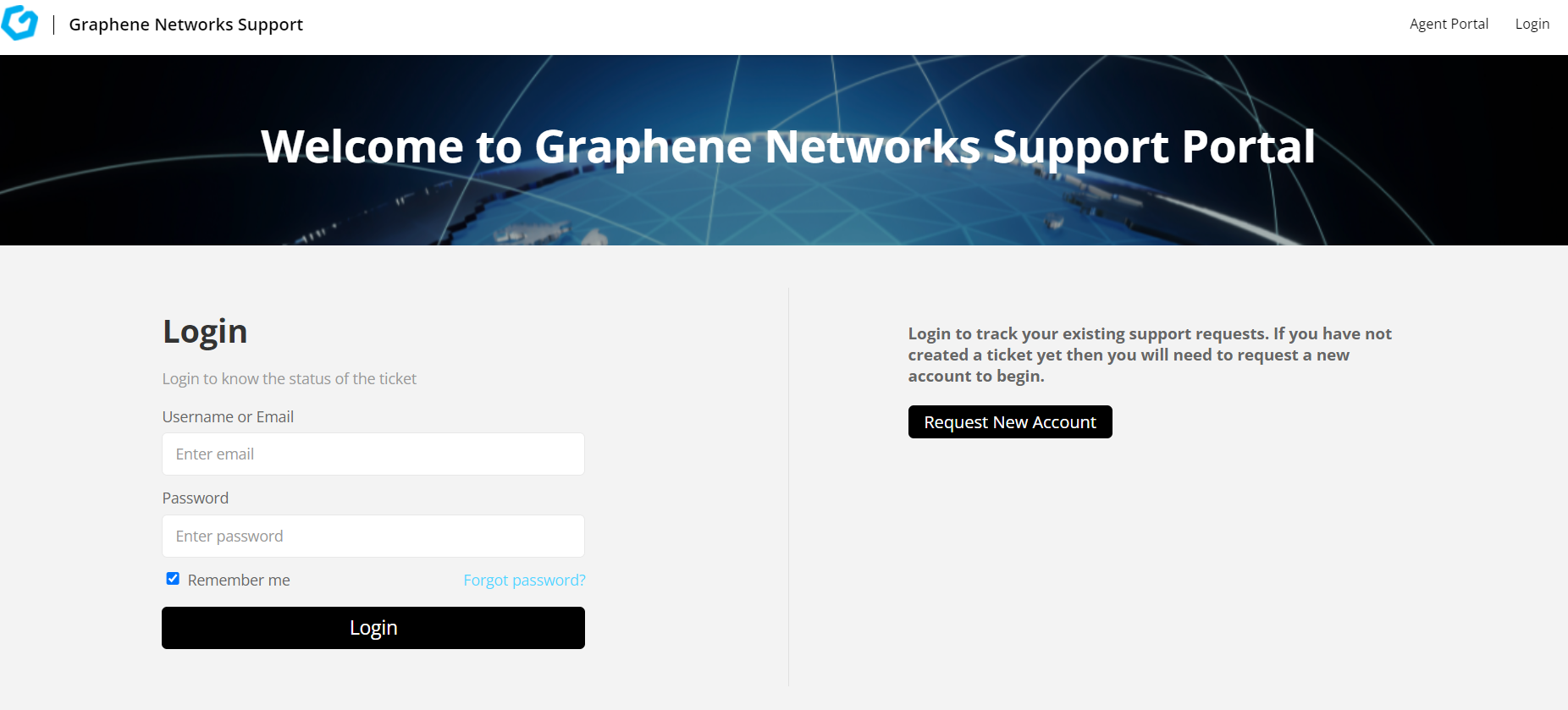
Registered users can click on Login on the front page of the portal.
If you do not see the login on the front of the page you can go to the top right corner of the screen where it says login.
This will take you to the login page shown below.
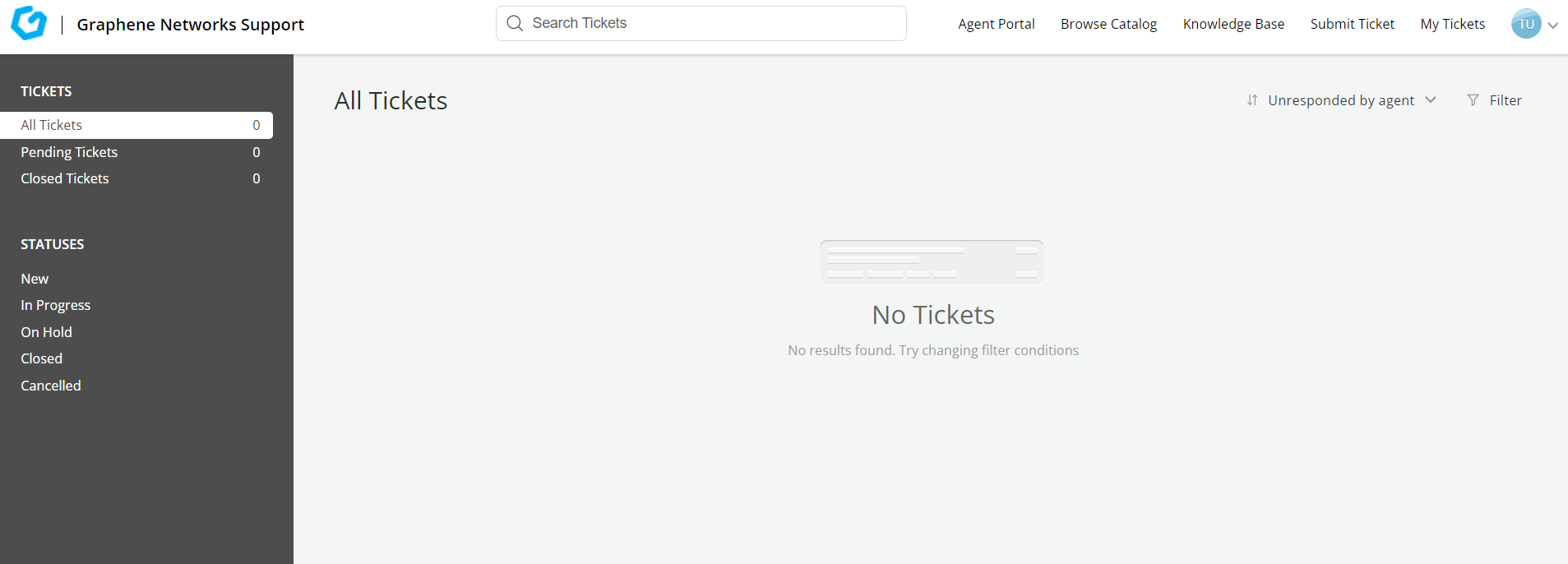
After Logging into the portal there is a left pane of prior ticket statuses.
These categories are based on ticket statuses like shown in the picture below. New, In progress, On hold, Closed and Cancelled.
This will show how many current tickets you have open in those categories.
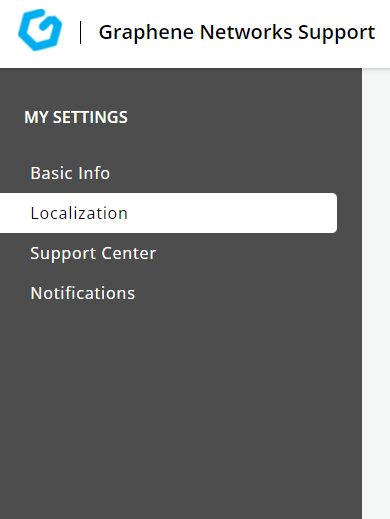
After logging in you can go to your icon in the upper right hand corner with the drop down arrow.
Clicking on My settings will give you a list to setup how you want to receive notifications, change email or password, change Localization settings ETC.
If there are any questions regarding any of the these settings please send a message to [email protected].

